When we pull data from different sources i.e. SQL, txt file, CSV files...., The date columns are imported in text format because of their source data type or could be due to any other reason.
For example - You have data of month in text format with no fixed length(at least three characters) like Jan, Febr, March, Apr, May etc. & you want to convert them into number as 1,2,3,4,5.
In this case, the best formula you can use to convert month in text to number is =Month(A1&1) or =Month("Apr"&1)
I am not sure you are going to use this function directly but you can use it as sub function in Date function as well like
=DATE(2011, MONTH(A1&1),2)
***This formula is submitted by Manoj Kumar in the Group Puzzle. Thanks Manoj.***
If you have any feedback or better solution , Feel free the write the comment.
Saturday, January 8, 2011
Wednesday, January 5, 2011
Custom Number and Date Format
Click here to read full article on 'Custom' Format.
What is 'Custom Format' ?: Microsoft Office Excel provides many built-in number formats, but in some cases they do not meet our needs, we can customize a built-in number format to create our own.
Why 'Custom Format' and not 'Conditional Formatting'?: because to cure 'Common Cold' we go to doctors not surgeons. Exactly, when there is a simple and robust way then why to go otherwise. There are many benefits of using custom format including these:
1. Less overhead than Conditional Formatting.
2. Values can be used easily in formulas (Less manipulation required).
3. Charts looks better with custom colored labels/axis.
4. Works on all versions of Excel.
and many more which you can figure out using your innovative mind after reading this article.
Examples:
Let's move with some examples of various data. Essentially, examples makes this subject simple.
I - BASIC EXAMPLES
Click here to read full article on 'Custom' Format including intermediate and advanced examples with theory and logic.
What is 'Custom Format' ?: Microsoft Office Excel provides many built-in number formats, but in some cases they do not meet our needs, we can customize a built-in number format to create our own.
Why 'Custom Format' and not 'Conditional Formatting'?: because to cure 'Common Cold' we go to doctors not surgeons. Exactly, when there is a simple and robust way then why to go otherwise. There are many benefits of using custom format including these:
1. Less overhead than Conditional Formatting.
2. Values can be used easily in formulas (Less manipulation required).
3. Charts looks better with custom colored labels/axis.
4. Works on all versions of Excel.
and many more which you can figure out using your innovative mind after reading this article.
Examples:
Let's move with some examples of various data. Essentially, examples makes this subject simple.
I - BASIC EXAMPLES
| COMMENTS | TO DISPLAY | AS | USE THIS |
| Leading Zeros | 26 | 0026 | 0000 |
| Phone Number | 9999404843 | 999-940-4843 | 000-000-0000 |
| Day of the Date | 26/05/1984 | Saturday | dddd |
| Month of the Date | 26/05/1984 | May | mmmm |
| Comma Place holder | 23456789 | 23,456,789 | #, ### |
| Currency | 2605.5 | € 2,605.50 | € #,###.00 |
Click here to read full article on 'Custom' Format including intermediate and advanced examples with theory and logic.

Friday, December 31, 2010
Hide Cell error while printing
If you want to hide the error while printing your spreadsheet, There is a simple print setting change you need to do.
Follow the below steps:-
1) Go to Page Setup
2) Select Sheet tab
3) Select blank or "--" in "cell error as:" option.
4) click Ok and print the page
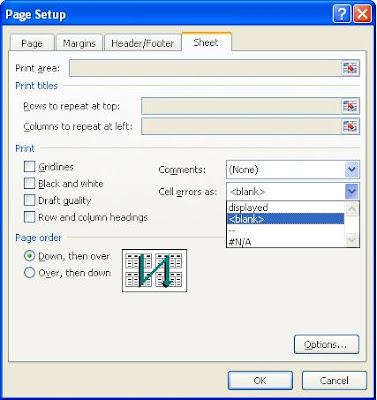
This will keep the error in spreadsheet but will not be displayed on printed pages.
Sometimes it’s useful to know where the errors are so you can correct any that are not expected, but if you regularly print reports you probably don’t want the errors displayed.
Do give a try when next time you print any spreadsheet.
Follow the below steps:-
1) Go to Page Setup
2) Select Sheet tab
3) Select
4) click Ok and print the page

This will keep the error in spreadsheet but will not be displayed on printed pages.
Sometimes it’s useful to know where the errors are so you can correct any that are not expected, but if you regularly print reports you probably don’t want the errors displayed.
Do give a try when next time you print any spreadsheet.
Wednesday, December 29, 2010
3 Things to remember before Excel VBA Job Interview
Like giving interview is a skill, taking interview is another great skill. Ashish Jain have taken many interviews in the past and given more than he has taken and here he is sharing the content from his experience. Your interview experience may be totally different than he has mentioned here but you must be aware of it and should not miss some common things mentioned here. These are his personal views and have nothing to do any of his past or present employers.
If a good interviewer will conduct an interview, he will not probe your technical knowledge only but also how much logical and reasoning thinking you possess along with some programming etiquette. You must remember these 3 things are interviewed in a good Excel and VBA job interview for Analyst position:
1. General Programming Attitude
2. Knowledge of Excel Object Model
3. Excel Knowledge (Data Validation, Subtotal, Formulas etc.)
Read the full article here written by Ashish Jain on eXceLiTems.com
If a good interviewer will conduct an interview, he will not probe your technical knowledge only but also how much logical and reasoning thinking you possess along with some programming etiquette. You must remember these 3 things are interviewed in a good Excel and VBA job interview for Analyst position:
1. General Programming Attitude
2. Knowledge of Excel Object Model
3. Excel Knowledge (Data Validation, Subtotal, Formulas etc.)
Read the full article here written by Ashish Jain on eXceLiTems.com
Tuesday, December 28, 2010
50 Excel VBA Oral Interview Questions
These Excel VBA Interview questions are being posted keeping in mind that reader is aware of working with VBA, have some programming and MS Excel background and is aware of terminologies. This question bank is helpful for both Interviewee and Interviewer as it provides a quick channel of questions and answers covering major topics of Excel and VBA.
If you're looking for a job in MIS/Automation/Dashboard creation etc. as a Business Analyst, Senior Analyst, Associate Analyst, etc involving MS Excel, MS Access, VBA, SQL, Cognos, ASP.NET etc then Click here on 'Excel VBA Job Postings'
Click here to read all the 50 questions and answers.
ByVal: If you pass an argument by value when calling a procedure the variable's value can be changed with in the procedure only outside the actual value of the variable is retained.
ByRef is default: Passing by reference is the default in VBA. If you do not explicitly specify to pass an argument by value VBA will pass it by reference.
i) The Boolean data type has only two states, True and False. These types of variables are stored as 16-bit (2 Byte) numbers, and are usually used for flags.
ii) The Byte data type is an 8-bit variable which can store value from 0 to 255.
iii) The Double data type is a 64-bit floating point number used when high accuracy is needed.
iv) The Integer data type is a 16-bit number which can range from -32768 to 32767. Integers should be used when you are working with values that can not contain fractional numbers. In case, you're working over 32767 rows use Long as data type.
v) The Long data type is a 32-bit number which can range from -2,147,483,648 to 2,147,483,647.
vi) The Single data type is a 32-bit number ranging from -3.402823e38 to -1.401298e-45 for negative values and from 1.401298e-45 to 3.402823e38 for positive values. When you need fractional numbers within this range, this is the data type to use.
vii) The String data type is usually used as a variable-length type of variable. A variable-length string can contain up to approximately 2 billion characters. Each character has a value ranging from 0 to 255 based on the ASCII character set.
i) Forms controls can be used on worksheets and chart sheets. Forms controls can also be placed within embedded charts in Classic Excel (though not in Excel 2007). ActiveX controls can only be used on worksheets. ActiveX controls do not work in MacExcel.
ii) The Forms controls aren’t very complicated, and they have been part of Excel for longer (they were used in Excel 5/95’s dialog sheets) than the Controls Toolbox (Excel 97), so it stands to reason that they’d be more seamlessly integrated. Being newer, the ActiveX controls have richer formatting possibilities. Both can link to cells and ranges in the worksheet.
i) Subroutines never return a value but functions does return values.
ii) A function could not change the values of actual arguments whereas a subroutine could change them.
All the controls in the ToolBox except the Pointer are objects in Visual Basic. These objects have associated properties, methods and events.
A property is a named attribute of a programming object. Properties define the characteristics of an object such as Size, Color etc. or sometimes the way in which it behaves.
A method is an action that can be performed on objects. For example, a cat is an object. Its properties might include long white hair, blue eyes, 3 pounds weight etc. A complete definition of cat must only encompass on its looks, but should also include a complete itemization of its activities. Therefore, a cat's methods might be move, jump, play, breath etc.
Visual Basic programs are built around events. Events are various things that can happen in a program. Let us consider a TextBox control and a few of its associated events to understand the concept of event driven programming. The TextBox control supports various events such as Change, Click, MouseMove and many more that will be listed in the Properties dropdown list in the code window for the TextBox control. We will look into a few of them as given below.
* The code entered in the Change event fires when there is a change in the contents of the TextBox
* The Click event fires when the TextBox control is clicked.
* The MouseMove event fires when the mouse is moved over the TextBox
Click here to read all the 50 questions and answers.
If you're looking for a job in MIS/Automation/Dashboard creation etc. as a Business Analyst, Senior Analyst, Associate Analyst, etc involving MS Excel, MS Access, VBA, SQL, Cognos, ASP.NET etc then Click here on 'Excel VBA Job Postings'
Ques 01. What is the difference between ByVal and ByRef and which is default ?
Solution: ByRef: If you pass an argument by reference when calling a procedure the procedure access to the actual variable in memory. As a result the variable's value can be changed by the procedure.ByVal: If you pass an argument by value when calling a procedure the variable's value can be changed with in the procedure only outside the actual value of the variable is retained.
ByRef is default: Passing by reference is the default in VBA. If you do not explicitly specify to pass an argument by value VBA will pass it by reference.
Ques 02. What is the meaning of Option Explicit and Option Base?
Solution: Option Explicit makes the declaration of Variables Mandatory while Option Base used at module level to declare the default lower bound for array subscripts. For eg. Option Base 1 will make the array lower bound as 1 instead of 0.Ques 03. What are various data type and their size?
Solution:i) The Boolean data type has only two states, True and False. These types of variables are stored as 16-bit (2 Byte) numbers, and are usually used for flags.
ii) The Byte data type is an 8-bit variable which can store value from 0 to 255.
iii) The Double data type is a 64-bit floating point number used when high accuracy is needed.
iv) The Integer data type is a 16-bit number which can range from -32768 to 32767. Integers should be used when you are working with values that can not contain fractional numbers. In case, you're working over 32767 rows use Long as data type.
v) The Long data type is a 32-bit number which can range from -2,147,483,648 to 2,147,483,647.
vi) The Single data type is a 32-bit number ranging from -3.402823e38 to -1.401298e-45 for negative values and from 1.401298e-45 to 3.402823e38 for positive values. When you need fractional numbers within this range, this is the data type to use.
vii) The String data type is usually used as a variable-length type of variable. A variable-length string can contain up to approximately 2 billion characters. Each character has a value ranging from 0 to 255 based on the ASCII character set.
Ques 04. Difference between ActiveWorkbook and ThisWorkbook.
Solution: ThisWorkbook refers to the workbook where code is being written while ActiveWorkbook refers to the workbook which is in active state with active window. In case of only one workbook open, ActiveWorkbook is same as ThisWorkbook.Ques 05. Code to find a Last used Row in a column or Last used column of a Row.
Solution: Last Row in a column can be find using End(xlUp) and Last Column in a row can be find using End(xlToLeft). For e.g. Range("A1048576").End(xlUp).Row gives last used row of Column A.Ques 06. Difference between ActiveX and Form Controls.
Solution: i) Forms controls can be used on worksheets and chart sheets. Forms controls can also be placed within embedded charts in Classic Excel (though not in Excel 2007). ActiveX controls can only be used on worksheets. ActiveX controls do not work in MacExcel.
ii) The Forms controls aren’t very complicated, and they have been part of Excel for longer (they were used in Excel 5/95’s dialog sheets) than the Controls Toolbox (Excel 97), so it stands to reason that they’d be more seamlessly integrated. Being newer, the ActiveX controls have richer formatting possibilities. Both can link to cells and ranges in the worksheet.
Ques 07. What is the difference b/w Functions and Subroutines?
Solution: i) Subroutines never return a value but functions does return values.
ii) A function could not change the values of actual arguments whereas a subroutine could change them.
Ques 08. How to debug a VBA code?
Solution: Using Breakpoints(F9), Step-by-step execution (F8), Debug.Print & Immediate Window and Watch window.Ques 09. Draw basic Excel Object Model.
Solution: Application --> Workbooks --> Worksheets --> Range / ChartQues 10. What are properties, methods, events and objects?
Solution: For details click here --> http://msdn.microsoft.com/en-us/library/ms172576%28VS.80%29.aspxAll the controls in the ToolBox except the Pointer are objects in Visual Basic. These objects have associated properties, methods and events.
A property is a named attribute of a programming object. Properties define the characteristics of an object such as Size, Color etc. or sometimes the way in which it behaves.
A method is an action that can be performed on objects. For example, a cat is an object. Its properties might include long white hair, blue eyes, 3 pounds weight etc. A complete definition of cat must only encompass on its looks, but should also include a complete itemization of its activities. Therefore, a cat's methods might be move, jump, play, breath etc.
Visual Basic programs are built around events. Events are various things that can happen in a program. Let us consider a TextBox control and a few of its associated events to understand the concept of event driven programming. The TextBox control supports various events such as Change, Click, MouseMove and many more that will be listed in the Properties dropdown list in the code window for the TextBox control. We will look into a few of them as given below.
* The code entered in the Change event fires when there is a change in the contents of the TextBox
* The Click event fires when the TextBox control is clicked.
* The MouseMove event fires when the mouse is moved over the TextBox
Monday, December 27, 2010
Excel 2003 Style Menu in Excel 2007/2010
I really don't want to write this article as I'm in love with new interface of Excel 2007 and wants my blog readers and every excel user to understand the new Ribbon Menu structure than to go back and use Excel 2003 style menu in Excel 2007. However I don't want to write but I'm not writing this article on a gun-point. Lolzzzzzzzz... The objective is to help those users who want to remain stick with legacy programs just because they don't understand new and improved systems. So, that they can move to new systems, explore it, gradually learn it and hence praise it. Second reason is that such utilities are available @ cost of $20-$50 over the internet which my dear readers and excel users do not need to pay anyway.
In my total experience with Excel and Excel users, I encountered many peoples (major of them Senior Managers and Managers) who resist Excel 2007 primarily due to its new ribbon structure. They were habitual to 2003 and before menu style and found it hard to locate their favorite commands. Anyway, let's come to technical part now.
 |
| Excel 2003 Style Menu in Excel 2007 |
In my total experience with Excel and Excel users, I encountered many peoples (major of them Senior Managers and Managers) who resist Excel 2007 primarily due to its new ribbon structure. They were habitual to 2003 and before menu style and found it hard to locate their favorite commands. Anyway, let's come to technical part now.
Click here to create Excel 2003 Style Menu in Excel 2007/2010
Sunday, December 26, 2010
SHRINK REDUCE EXCEL FILE SIZE
When you received the file, the size was in Kbs or not more than 5-6 Mbs but when you checked it, did very little or negligible things, and saved your workbook, you found out the file size has been bloated to 3 to 100 times. It is possible, it happens in Excel. So don't worry too much.
Source of issue: First understand the difference between 'Excel Default Last Cell' and 'Actual Last Cell'. When you do 'Ctrl+End' to find last cell, you'll reach to 'Excel Default Last Cell' which may be the 'Actual Last Cell' or beyond the 'Actual Last Cell'. The more beyond 'Excel Default Last Cell' would be from 'Actual Last Cell', the more unnecessary size of excel workbook would it be having.
Solution: Delete all rows and columns beyond the 'Actual Last Cell' in every worksheet. If there are too many worksheets and large sets of data, you can use the VBA macro mentioned below.
Do read full article to see the VBA code.
Source of issue: First understand the difference between 'Excel Default Last Cell' and 'Actual Last Cell'. When you do 'Ctrl+End' to find last cell, you'll reach to 'Excel Default Last Cell' which may be the 'Actual Last Cell' or beyond the 'Actual Last Cell'. The more beyond 'Excel Default Last Cell' would be from 'Actual Last Cell', the more unnecessary size of excel workbook would it be having.
Solution: Delete all rows and columns beyond the 'Actual Last Cell' in every worksheet. If there are too many worksheets and large sets of data, you can use the VBA macro mentioned below.
Do read full article to see the VBA code.
Speed up Excel Start up (FASTER EXCEL)
Ever wondered why your excel startup so slow, even if you're working on the best motherboard and processor available in the market? Tried many things but no success. Try this, although this is one of the trick or might be the only reason but if it is, then you'll save a lot of your time.
One of the expected reason is Excel's toolbar file which tends to grow very big and this toolbar file is loaded when excel starts up. The extension of this excel toolbar file is XLB, default location is "Application Data\Microsoft\Excel\" and normal size is 10 to 90 KB. Problem arises when this size reaches in megaBytes(MB).
Do read full article to understand the logic behind solution.
One of the expected reason is Excel's toolbar file which tends to grow very big and this toolbar file is loaded when excel starts up. The extension of this excel toolbar file is XLB, default location is "Application Data\Microsoft\Excel\" and normal size is 10 to 90 KB. Problem arises when this size reaches in megaBytes(MB).
Do read full article to understand the logic behind solution.
Excel Formulas & Functions: Array Formulas or CSE Formulas
What is an ARRAY?
An array is a collection of items. In Excel, those items can reside in a single row (called a one-dimensional horizontal array), a column (a one-dimensional vertical array), or multiple rows and columns (a two-dimensional array). You cannot create three-dimensional arrays or array formulas in Excel.
An array formula is a formula that can perform multiple calculations on one or more of the items in an array. Array formulas can return either multiple results or a single result. For example, you can place an array formula in a range of cells and use the array formula to calculate a column or row of subtotals. You can also place an array formula in a single cell and then calculate a single amount. An array formula that resides in multiple cells is called a multi-cell formula, and an array formula that resides in a single cell is called a single-cell formula.
Syntax
The primary rule for creating an array formula is worth repeating: Press CTRL+SHIFT+ENTER (That's why they're known as CSE formulas) whenever you need to enter or edit an array formula. That rule applies to both single-cell and multi-cell formulas.
Whenever you work with multi-cell formulas, you also need to follow these rules:
You cannot change the contents of an individual cell in an array formula.
You can move or delete an entire array formula, but you cannot move or delete part of it. In other words, to shrink an array formula, you first delete the existing formula and then start over.
You cannot insert blank cells into or delete cells from a multi-cell array formula.
Do read full article to understand the logic behind it.
An array is a collection of items. In Excel, those items can reside in a single row (called a one-dimensional horizontal array), a column (a one-dimensional vertical array), or multiple rows and columns (a two-dimensional array). You cannot create three-dimensional arrays or array formulas in Excel.
An array formula is a formula that can perform multiple calculations on one or more of the items in an array. Array formulas can return either multiple results or a single result. For example, you can place an array formula in a range of cells and use the array formula to calculate a column or row of subtotals. You can also place an array formula in a single cell and then calculate a single amount. An array formula that resides in multiple cells is called a multi-cell formula, and an array formula that resides in a single cell is called a single-cell formula.
Syntax
The primary rule for creating an array formula is worth repeating: Press CTRL+SHIFT+ENTER (That's why they're known as CSE formulas) whenever you need to enter or edit an array formula. That rule applies to both single-cell and multi-cell formulas.
Whenever you work with multi-cell formulas, you also need to follow these rules:
You cannot change the contents of an individual cell in an array formula.
You can move or delete an entire array formula, but you cannot move or delete part of it. In other words, to shrink an array formula, you first delete the existing formula and then start over.
You cannot insert blank cells into or delete cells from a multi-cell array formula.
Do read full article to understand the logic behind it.
17 ways to Optimize VBA Code for FASTER Macros
Here is a summary of the article:
1. Analyze the Logic
2. Turn off ScreenUpdating
3. Turn off 'Automatic Calculations'
4. Disable Events
5. Hide Page breaks
6. Use 'WITH' statement
7. Use vbNullString instead of ""
8. Release memory of Object variables
9. Reduce the number of lines using colon(:)
10. Prefer constants
11. Avoid Unnecessary Copy and Paste
12. Clear the Clipboard after Paste
13. Avoid 'Macro Recorder' style code.
14. Use 'For Each' than 'Indexed For'
15. Use 'Early Binding' rather 'Late Binding'
16. Avoid using Variant
17. Use Worksheet Functions wherever applicable
Do read full article to understand the logic behind them.
1. Analyze the Logic
2. Turn off ScreenUpdating
3. Turn off 'Automatic Calculations'
4. Disable Events
5. Hide Page breaks
6. Use 'WITH' statement
7. Use vbNullString instead of ""
8. Release memory of Object variables
9. Reduce the number of lines using colon(:)
10. Prefer constants
11. Avoid Unnecessary Copy and Paste
12. Clear the Clipboard after Paste
13. Avoid 'Macro Recorder' style code.
14. Use 'For Each' than 'Indexed For'
15. Use 'Early Binding' rather 'Late Binding'
16. Avoid using Variant
17. Use Worksheet Functions wherever applicable
Do read full article to understand the logic behind them.
Sunday, October 24, 2010
Info Function
Info function provides information about the operating environment of the computer.
=INFO(name of the item you require information about)
Example :-
1. Current directory --> =INFO("directory")
2. Available bytes of memory --> =INFO("memavail")
3. Memory in use --> =INFO("memused")
4. Total bytes of memory --> =INFO("totmem")
5. Number of active worksheets --> =INFO("numfile")
6. Cell currently in the top left of the window --> =INFO("origin")
7. Operating system --> =INFO("osversion")
8. Recalculation mode --> =INFO("recalc")
9. Excel version --> =INFO("release")
10. Name of system. (PC or Mac) --> =INFO("system")
The results will be shown as text or a number depending upon what was requested.
Isn't it interesting, If yes, share with Your frenzz now :)
=INFO(name of the item you require information about)
Example :-
1. Current directory --> =INFO("directory")
2. Available bytes of memory --> =INFO("memavail")
3. Memory in use --> =INFO("memused")
4. Total bytes of memory --> =INFO("totmem")
5. Number of active worksheets --> =INFO("numfile")
6. Cell currently in the top left of the window --> =INFO("origin")
7. Operating system --> =INFO("osversion")
8. Recalculation mode --> =INFO("recalc")
9. Excel version --> =INFO("release")
10. Name of system. (PC or Mac) --> =INFO("system")
The results will be shown as text or a number depending upon what was requested.
Isn't it interesting, If yes, share with Your frenzz now :)
Tuesday, June 29, 2010
Hiding Formulas
There are times when you don't want the user to know the logic of the formulas or you want to maintain the confidentiality of formulas.
In this case, you want to hide the formulas from the users and display value only.
Follow the below steps to hide the formulas displayed in cell or Formula Bar.
1) Select the cells containing the formulas and need protection.
2) Right click ----> Format Cells.
3) Go to Protection Tab
4) Select LOCKED and HIDDEN CheckBox. (Locked check box restricts editing of cell)
5) Click OK
6) Go to Review tab
7) Click on "Protect Sheet" button
8) Apply password if required. ( Not mandatory)
9) Click OK.
To show the formulas again, Just use UNPROTECT SHEET button from Review Tab...
Locking cells or hiding formulas has no effect until you protect the worksheet.
Hope it helps....Share with your colleagues.
In this case, you want to hide the formulas from the users and display value only.
Follow the below steps to hide the formulas displayed in cell or Formula Bar.
1) Select the cells containing the formulas and need protection.
2) Right click ----> Format Cells.
3) Go to Protection Tab
4) Select LOCKED and HIDDEN CheckBox. (Locked check box restricts editing of cell)
5) Click OK
6) Go to Review tab
7) Click on "Protect Sheet" button
8) Apply password if required. ( Not mandatory)
9) Click OK.
To show the formulas again, Just use UNPROTECT SHEET button from Review Tab...
Locking cells or hiding formulas has no effect until you protect the worksheet.
Hope it helps....Share with your colleagues.
Saturday, June 26, 2010
Expand menus in excel 2003
In a new installation of Microsoft Excel 2003 all menus are abbreviated. To see a full menu requires that you either click the expand button at the bottom of the menu or wait about 3 seconds for it to automatically expand. To put it nicely, this drives me batty.
It’s a simple thing to show full menus in Excel 2003. There are several ways to make this change, but I’ll show the easiest method for me.
- Click the Tools menu OR right-click the toolbar
- Select Customize from the pop-up menu
- Select the Options tab in the Customize box
- Under Personalized Menus and Toolbars, click Always show full menus
- Click Close
Full menus always look the same, which makes it easier to find what you’re looking for and is a much better option for new users.
Friday, June 25, 2010
MS office Application Shortcuts
To open any office application , you may use Run command in start menu.
Go to Start , Select RUN
and type
1) excel to open MS Excel
2) winword to open MS Word
3) msaccess to open MS Access
4) outlook to open MS Outlook
5) powerpnt to open MS Powerpoint
Amazing ??
Start using now.................
Go to Start , Select RUN
and type
1) excel to open MS Excel
2) winword to open MS Word
3) msaccess to open MS Access
4) outlook to open MS Outlook
5) powerpnt to open MS Powerpoint
Amazing ??
Start using now.................
Tuesday, May 18, 2010
Save Workspace
One can open a group of workbooks in a single step by creating a workspace file.
A workspace file saves information about all open workbooks, such as their locations, window sizes, and screen positions. When you open a workspace file by using the Open
command (File menu), Microsoft Excel opens each workbook saved in the workspace.
The workspace file does not contain the workbooks themselves, and you must continue to
save changes you make to the individual workbooks.
1. Open the workbooks you want to open as a group.
2. Size and position the workbook windows as you want them to appear
the next
time you use the workbooks.
3. On the View tab, click Save Workspace.
4. In the File name box, enter a name for the workspace file.
The workspace file has an extension (*.xlw)
This feature is really helpful while working with multiple Workbooks located in different folders. You can open the multiple files by just opening one file.....
Isn't this sounds good ? If yes, try now.......
A workspace file saves information about all open workbooks, such as their locations, window sizes, and screen positions. When you open a workspace file by using the Open
command (File menu), Microsoft Excel opens each workbook saved in the workspace.
The workspace file does not contain the workbooks themselves, and you must continue to
save changes you make to the individual workbooks.
1. Open the workbooks you want to open as a group.
2. Size and position the workbook windows as you want them to appear
the next
time you use the workbooks.
3. On the View tab, click Save Workspace.
4. In the File name box, enter a name for the workspace file.
The workspace file has an extension (*.xlw)
This feature is really helpful while working with multiple Workbooks located in different folders. You can open the multiple files by just opening one file.....
Isn't this sounds good ? If yes, try now.......
Friday, March 19, 2010
Faster access to worksheets
When working with large workbooks in which all of the worksheet tabs are not visible, your users may get frustrated with scrolling to find the sheet they need. Here's a really quick tip to pass on. Right-click on any of the tab-scrolling buttons (to the left of the sheet tabs) and a shortcut menu will pop up. You can then select the tab you want.
Here is an example :

Here is an example :

Sunday, February 28, 2010
Filter by the Selected Cell
Excel 2007 added the feature to filter table fields by the selected cell.
What does this mean?
Focus on analyzing data instead of defining filter criteria each time.
This quick filter method is ideal for selecting categories, for example: cities, products, subjects, suppliers, etc.
You can filter by:
1. Select the cell on which you want to apply the filter or right click directly on it.
2. Go to: Filter>Filter by Selected Cell’s value
3. Click

What does this mean?
Focus on analyzing data instead of defining filter criteria each time.
This quick filter method is ideal for selecting categories, for example: cities, products, subjects, suppliers, etc.
You can filter by:
- Cell's value
- Cell's color
- Cell’s font color
- Cell's icon
1. Select the cell on which you want to apply the filter or right click directly on it.
2. Go to: Filter>Filter by Selected Cell’s value
3. Click


Tuesday, February 23, 2010
Sum/Count/Average only Visible Rows with SUBTOTAL Function
Hidden rows are not excluded in SUM/COUNT/AVERAGE/MAX/MIN functions; what does this mean? Your results may appear greater, distorted, etc.
How to avoid this situation? Use SUBTOTAL function…
Follow the below steps :
1. Write SUBTOTAL function
2. Specify “function_num” as 109. 101 to 111 options ignore values of rows hidden by the Hide Rows Command.
3. Complete the Formula: =SUBTOTAL(109,B2:B7)
4. Enter
If B3 & B4 are hidden rows, Then they would not be included in calculation.
.
How to avoid this situation? Use SUBTOTAL function…
Follow the below steps :
1. Write SUBTOTAL function
2. Specify “function_num” as 109. 101 to 111 options ignore values of rows hidden by the Hide Rows Command.
3. Complete the Formula: =SUBTOTAL(109,B2:B7)
4. Enter
If B3 & B4 are hidden rows, Then they would not be included in calculation.
.
Saturday, February 20, 2010
Check VLOOKUP Formula for #NA Error without Slowing Down Computations (Excel 2007)
You can see across forums that the way to trap the #N/A error in VLOOKUP Formulas is this way:
=IF(ISERROR(VLOOKUP(A2,$H$18:$I$21,2,FALSE)), "Not found",VLOOKUP(A2,$H$18:$I$21,2,FALSE))
This Formula calls VLOOKUP twice, this means double processing.
Avoid losing time when you work with intensive computing spreadsheets. Use IFERROR instead…
Embed the VLOOKUP Formula into an IFERROR function. The syntax is IFERROR(value,value_if_error). The Formula is done:
=IFERROR(VLOOKUP(A2,$H$18:$I$21,2,FALSE),"Not Found")
.
=IF(ISERROR(VLOOKUP(A2,$H$18:$I$21,2,FALSE)), "Not found",VLOOKUP(A2,$H$18:$I$21,2,FALSE))
This Formula calls VLOOKUP twice, this means double processing.
Avoid losing time when you work with intensive computing spreadsheets. Use IFERROR instead…
Embed the VLOOKUP Formula into an IFERROR function. The syntax is IFERROR(value,value_if_error). The Formula is done:
=IFERROR(VLOOKUP(A2,$H$18:$I$21,2,FALSE),"Not Found")
.
Saturday, February 6, 2010
Excel Famous Ranges & Cells
Good One :)
- IM21 The legal drinking age cell
- K9 The dog cell
- AK47 The assault weapon cell
- HI5 The alternate handshake cell
- AH:HA The discovery range
- F16 The fighter jet cell
- AM:FM The radio range
- ET2 The Brute' cell
- BY:BY The farewell range
- IC2 The double-vision cell
- IQ100 The average intelligence cell
- HO:H...O The Santa Claus range
- GO2 The destination cell
- FU2 The same to you cell
- EX2 The second former spouse cell
- CU8 The oil-rich country cell
- AG1:GB1 The '00 disputed Florida vote range
- T42 The old soft-shoe cell
- U2 The Irish rock group cell
- C4 The explosive cell
- R2:D2 The android range
- I1:U1 The tied game cell
- H8:U2 The ex-wife range
- IN2:CA9 The dog-lover range
- D84:U2 The double date range
- I812 The Monica Lewinsky meets Linda Lovelace cell
- I12:CU2 The "when can we meet" cell
Subscribe to:
Posts (Atom)